
On this page

Production databases need more than a shared username and password. Different users and services should have different levels of access: ingestion pipelines may only need to write data, developers may only need query access, and administrators need broader control over the system.
GreptimeDB's open-source edition provides fine-grained user permission management based on file configuration, which can meet the needs of most scenarios. However, within enterprises, more granular and stricter access control is often required as well.
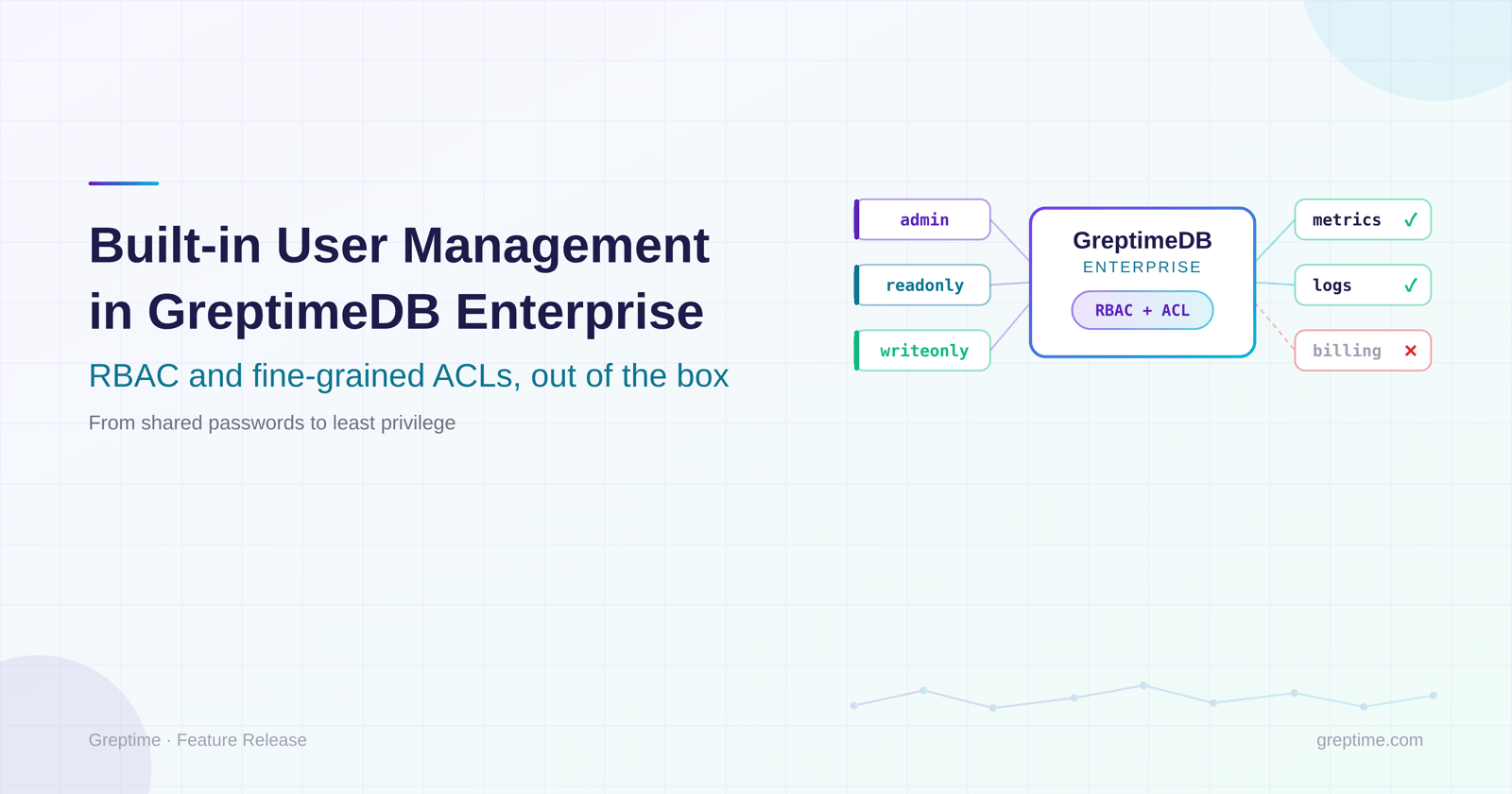
GreptimeDB Enterprise now includes a built-in user management system designed for exactly this need. Instead of relying on a static password file or wiring up an external identity system from day one, you can manage users directly inside the database cluster, with persistent storage, fine-grained permissions, and a built-in management experience.
For many teams, access control starts simple and grows more complex over time. Once a deployment moves into production, the requirements usually change:
- data pipelines should not have admin access
- analysts should not be able to modify schema
- application services should only touch the tables they own
- operators need a safe way to manage users over time
Built-in user management makes this easier by letting GreptimeDB Enterprise own the user lifecycle directly. User accounts are persisted in Metasrv's key-value store and stay consistent across all Frontend nodes, the database enforces permissions on every operation, and administration happens through built-in HTTP APIs and the Enterprise Dashboard.
Here's a quick look at what the feature does and how to use it.
Enabling the feature
To turn on built-in user management, set the user_provider option in the GreptimeDB Enterprise Frontend configuration (or in the standalone configuration for standalone mode):
toml
user_provider = "greptime_ee_user_provider:/path/to/passwords.txt"The path after the colon points to an optional seed file that creates initial accounts on first startup. To enable the provider without seeding any users, use greptime_ee_user_provider: — the trailing colon is required by the configuration parser.
If you deploy with the official Helm charts, set auth.enabled and auth.useBuiltIn to true. The chart then generates a seed file from auth.users as a Kubernetes Secret, mounts it into the instance, and configures the user provider for you.
Bootstrapping initial users
Each line in the seed file defines one initial account in the format username[:role]=password:
text
# username[:role]=password
admin:admin=admin_pwd
grafana:readonly=grafana_pwd
telegraf:writeonly=telegraf_pwd
writer:readwrite=writer_pwd
The format stays simple:
usernameis the account nameroleis optionalpasswordis the initial password
The predefined roles are straightforward:
admin: full privileges, including user managementreadonly(orro): read-only accesswriteonly(orwo): write-only accessreadwrite(orrw): both read and write access
If the role is omitted, the user defaults to readwrite. Seeded users get full access to the public database by default.
Seeding runs only once. If an account already exists on a later startup, GreptimeDB Enterprise skips it rather than replacing it, and you can modify seeded users later through the Enterprise Dashboard.
The default admin account
To make first-time setup easier, GreptimeDB Enterprise creates an admin account automatically on first startup if one doesn't already exist.
If the environment variable GREPTIME_ENTERPRISE_ADMIN_PASSWORD is set, that value becomes the password. Otherwise, the system generates a random password and prints it to the logs, so operators can access a new deployment even before any custom users exist. The admin password can also be reset later via the CLI.
See the reference section in the documentation for more details on the admin account and how to reset its password.
Privileges and ACLs
The built-in user management model combines two layers of control.
The first layer is privilege-based access (RBAC). This answers the question: what kind of operation is this user allowed to perform?
For example, a user may be allowed to:
- run queries
- write data
- create or alter tables
- manage databases
- perform administrative operations
See the privileges and ACLs section in the documentation for the detailed privilege definitions and how the predefined roles map to them.
The second layer is ACL-based access. This answers a different question: which databases or tables is this user allowed to access?
Here's the user editing form in the GreptimeDB Enterprise Dashboard. You can see the Privileges section with predefined roles, and the Access Control section with per-table selection and regular expression pattern input:
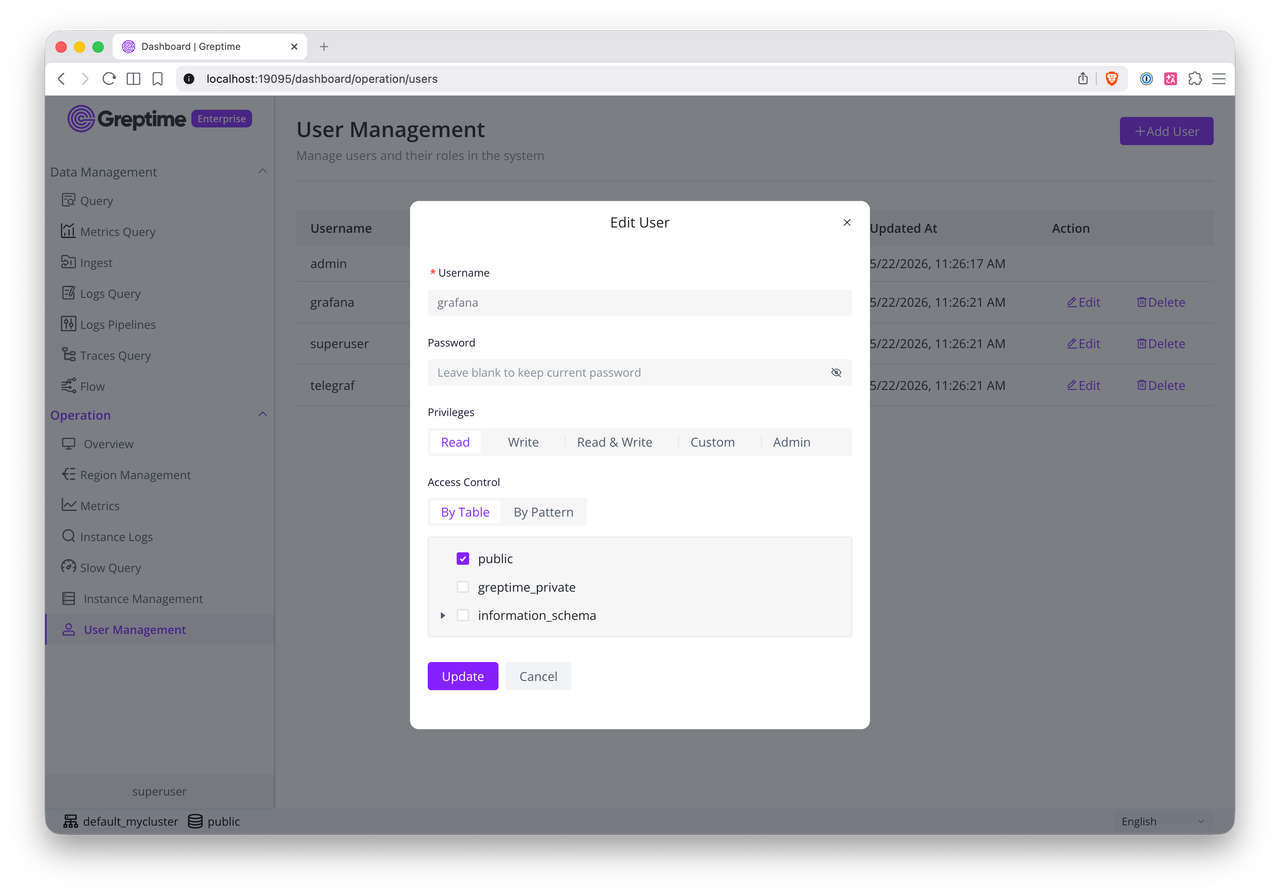
This combination matters. Two users may both have permission to query data, yet they may not be allowed to query the same tables. In practice, the model supports common production patterns:
- a visualization tool that can only read reporting data
- an ingestion service that can only write to a limited set of tables
- a team account that can access one database but not another
ACLs support different levels of precision. You can grant access broadly to all tables in a database, allow access to one exact table by name, or define access through regular expression matching — for example, mem_.* matches every table name that starts with mem_. Small teams can keep the model simple, while larger deployments have room to evolve.
Built-in user management is about more than login: it makes sure each account can only reach the data it's supposed to reach, with the database enforcing permissions during normal read, write, and schema operations.
Day-to-day management
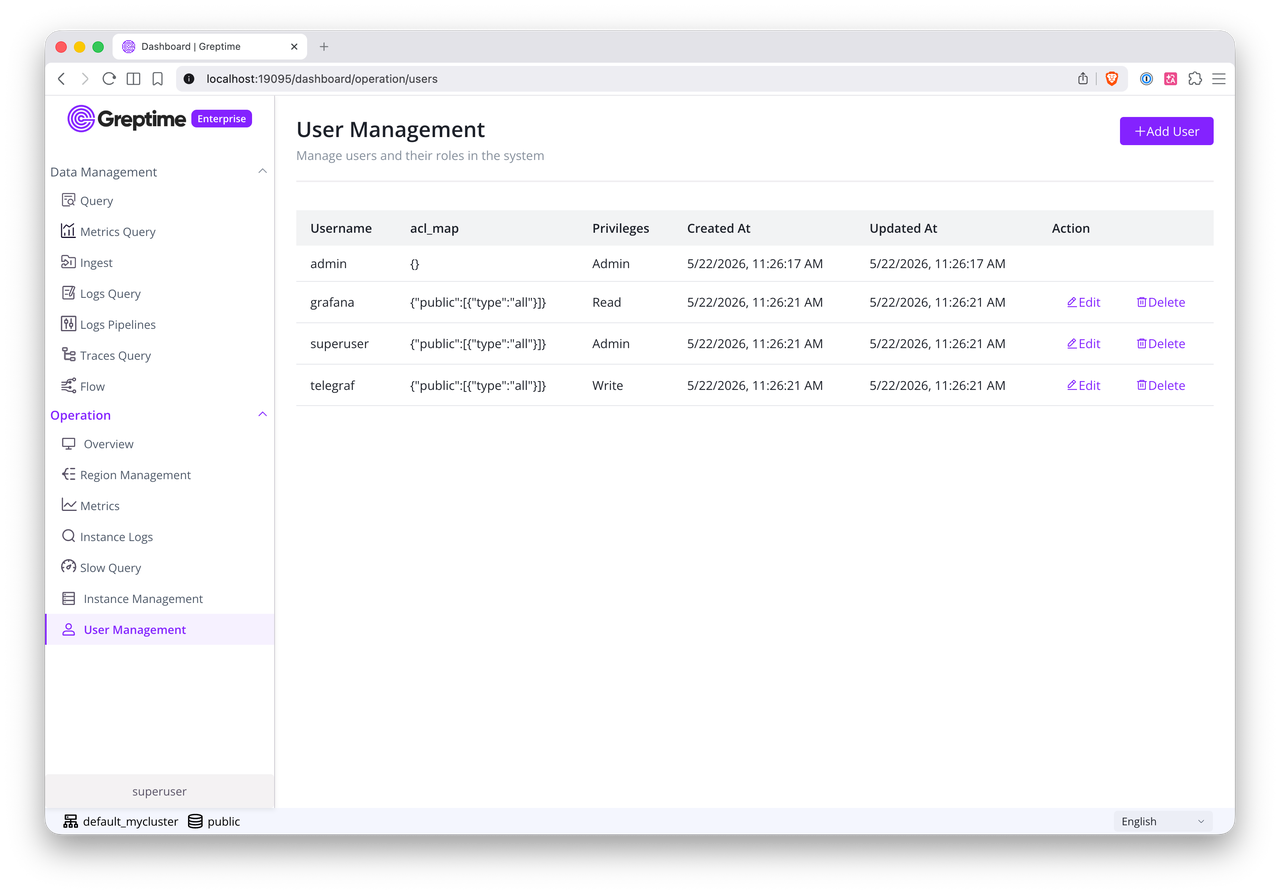
Built-in user management is meant to be practical for operators, not just technically possible.
Once enabled, GreptimeDB Enterprise provides built-in HTTP APIs for user administration, so you can manage users dynamically without restarting the server. The Enterprise Dashboard makes it easy to:
- view the user list
- create new users
- update permissions
- edit access rules
- delete users when they are no longer needed
No more hand-editing config files after the initial setup. Note that only accounts with the admin privilege can see the user management menu, and the built-in admin user cannot be deleted via the API.
When to use it
Built-in user management is a strong fit when you want:
- persistent user accounts managed by the database
- role-based access for common use cases
- finer control over which databases or tables a user can access
- a built-in operational workflow through APIs and UI
It works well for teams that want production-ready access control without depending on an external identity system from the start.
Closing thoughts
Built-in user management in GreptimeDB Enterprise closes the gap between simple bootstrap credentials and full production access control.
It gives you a practical way to create users, assign roles, limit access, and manage permissions over time, all within the database itself. For teams deploying GreptimeDB Enterprise in production, that makes it much easier to follow the principle of least privilege from day one.
Check the documentation for more details. To learn more about GreptimeDB Enterprise, get in touch with us.


